
The Invoice Generator is a web-based tool designed to create professional invoices in PDF format. It allows users to input customer details, add line items, calculate totals (including VAT if applicable), and generate a downloadable PDF invoice. This documentation provides a comprehensive guide to using and customizing the Invoice Generator.
Table of Contents
- Features
- How to Use
- Setting Up
- Generating an Invoice
- Code Structure
- HTML
- CSS
- JavaScript
- Customization
- Logo
- Company Details
- VAT Calculation
- Styling
- Dependencies
- Troubleshooting
- FAQs
- License
1. Features
- Dynamic Invoice Number: Generates a unique invoice number based on the current date and time.
- Customer Details: Collects customer information such as name, company, VAT Reg Nr, phone, and address.
- Line Items: Allows users to add multiple products with quantity, price, and line total calculations.
- VAT Calculation: Automatically calculates VAT (15%) if the customer's VAT Reg Nr is provided.
- PDF Generation: Creates a downloadable PDF invoice with a professional layout.
- Customizable: Easily customize the logo, company details, and styling.
2. How to Use
Setting Up
- Download the Code: Copy the provided HTML, CSS, and JavaScript code into a single .html file.
- Add Your Logo: Replace the placeholder Base64-encoded logo with your own logo. You can use an online tool to convert your logo image to Base64.
- Update Company Details: Modify the company details (name, address, email, phone, and VAT Reg Nr) in the JavaScript section under generatePDF.
Generating an Invoice
- Open the File: Open the .html file in a web browser.
- Fill in Customer Details: Enter the customer's name, company, VAT Reg Nr (if applicable), phone, and address.
- Add Line Items:
- Click the Add Item button to add a new product row.
- Select a product from the dropdown menu.
- Enter the quantity.
- The price and line total will be calculated automatically.
- Add Notes (Optional): Enter any additional notes in the "Notes" field.
- Generate PDF: Click the Download Invoice as PDF button to generate and download the invoice.
3. Code Structure
HTML
The HTML structure includes:
- A form for customer details and notes.
- A table for invoice items.
- Buttons to add items and generate the PDF.
CSS
The CSS styles the layout, including:
- A centered container with a shadow effect.
- Styled tables with alternating row colors.
- Buttons with hover effects.
JavaScript
The JavaScript handles:
- Dynamic invoice number generation.
- Adding and removing line items.
- Calculating subtotal, VAT, and grand total.
- Generating the PDF using the jsPDF library.
4. Customization
Logo
Replace the placeholder Base64-encoded logo:

Company Details
Update the company details in the generatePDF function:

VAT Calculation
To modify the VAT rate (default is 15%), update the calculation in the generatePDF and updateTotal functions:

Styling
Customize the CSS to match your branding:
- Update colors in the :root variables.
- Modify fonts, padding, and margins in the .container, table, and button styles.
5. Dependencies
The Invoice Generator relies on the following libraries:
- jsPDF: For generating PDFs. Included via CDN:

- jsPDF AutoTable: For creating tables in the PDF. Included via CDN:

6. Troubleshooting
Issue: PDF Not Generating
- Ensure the jsPDF and jsPDF AutoTable libraries are correctly loaded.
- Check the browser console for errors.
Issue: Incorrect Calculations
- Verify that the quantity and price inputs are valid numbers.
- Ensure the VAT Reg Nr is correctly entered if VAT calculation is required.
Issue: Logo Not Displaying
- Ensure the Base64-encoded logo is correctly formatted and not corrupted.
7. FAQs
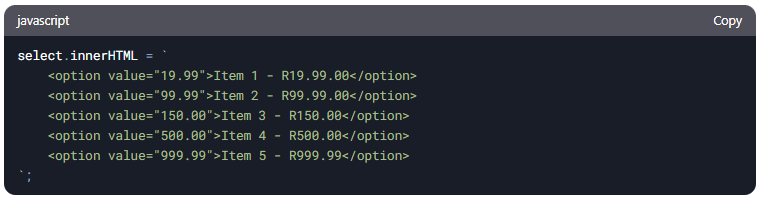
Q: Can I add more products to the dropdown?
A: Yes, update the select element in the addLineItem function:
Q: Can I change the currency?
A: Yes, replace "R" (Rand) with your desired currency symbol in the JavaScript code where prices are displayed.
Q: How do I add more fields to the customer details?
A: Add new input fields in the HTML form and update the generatePDF function to include them in the PDF.
Conclusion
The Invoice Generator is a powerful and customizable tool for creating professional invoices. With its intuitive interface and dynamic features, it simplifies the process of generating and managing invoices. For further assistance, refer to the documentation or contact support.
8. License
The Invoice Generator is open-source and free to use. You can modify and distribute it as needed.
Attribution is required and therefor you are not allowed to change the Copyright footer in the HTML as well as the Generated PDF Document.
For further assistance, contact support@clochenberg.co.za or visit the documentation page.
Happy Invoicing! 🚀